 AI Label Remover
How to Remove AI Metadata From Photos in 3 Steps, Without Touching the Pixels
To remove AI metadata from photos, you delete the blocks inside the file that record AI use: the C2PA manifest (Content Credentials), the "digital source type" field in XMP or IPTC, AI tool names in EXIF, and the prompts some generators write into PNG files. You can do it in three steps in your browser, without uploading the photo and without re-encoding a single pixel.
This guide walks through those steps, shows how to check the result, compares the other common methods, and is clear about what removing metadata can't do.
What counts as AI metadata
AI metadata is the part of a photo's hidden data that says AI was involved. It usually lives in one or more of these places:
| Where | What it records | Typical source |
|---|---|---|
| C2PA / Content Credentials | A signed history of how the image was made and edited | ChatGPT, Adobe Firefly, Photoshop Generative Fill |
| XMP and IPTC | The digital source type, such as trainedAlgorithmicMedia ("generated by AI"), and tool names | Generators and editing apps |
| EXIF | The software that saved the file, plus camera, date and GPS location | Cameras, phones, editors |
| PNG text chunks | The prompt, seed and settings | Stable Diffusion tools, ComfyUI |
Platforms read some of these when deciding on an AI label: Meta, for example, looks at C2PA and IPTC data for its "AI info" label. For a deeper look at the first row, see What Is C2PA Metadata?
How to remove AI metadata from photos in 3 steps
The steps below use AI Label Remover, a free tool that runs in your browser. It works on the file you already have, so the image stays exactly as it was.
Step 1: Add your photos
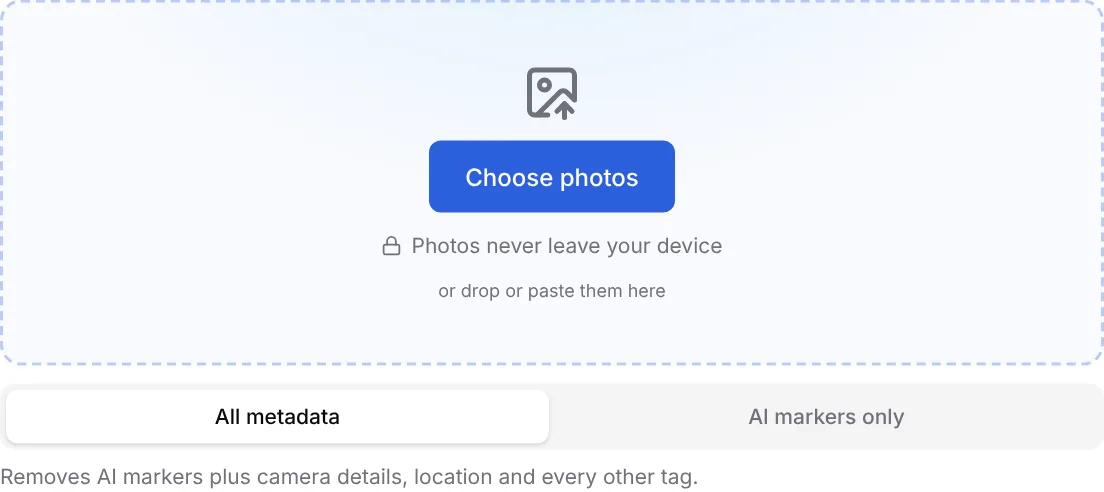
Open AI Label Remover and choose, drop or paste your photos — JPG, PNG, WebP, HEIC or AVIF, up to 100 at a time and 50 MB each. They are read inside your browser and never uploaded.
- On a computer you can drop photos anywhere on the page or paste one from the clipboard.
- iPhone HEIC photos stay HEIC: there is no conversion to JPG.
Step 2: Choose what to remove and review what was found
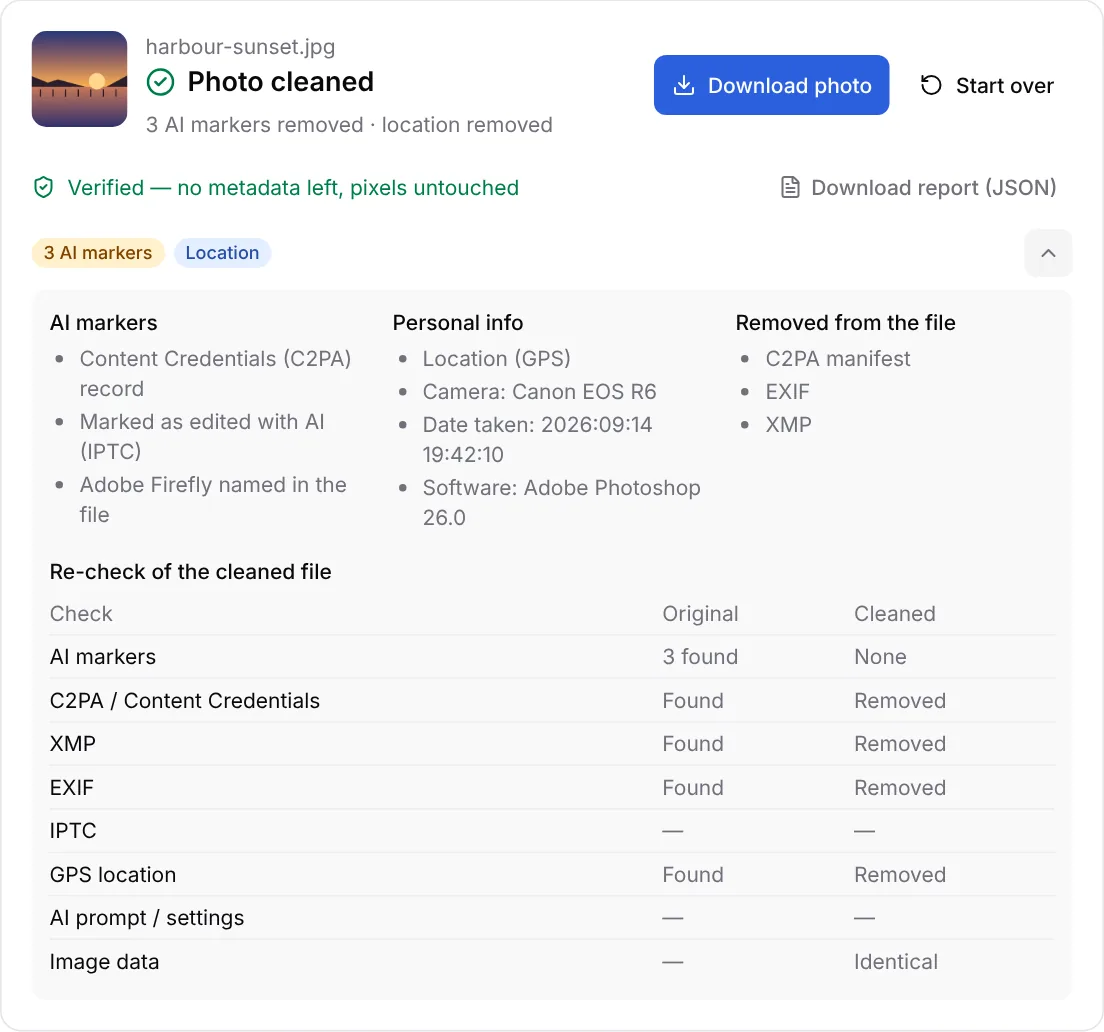
Keep the default, All metadata, to strip everything, or choose AI markers only to keep camera details and copyright. Each photo then lists the AI markers and personal details it contained, and the cleaned file is checked again automatically.
- All metadata also removes location, camera model and dates: the safest choice for photos you post publicly.
- AI markers only blanks the AI fields and keeps camera details, copyright and the colour profile. Location is still removed unless you tick Keep location.
- Open the details to see each AI marker, what was removed and a before/after table of the re-check.
Step 3: Download the cleaned copy and upload that one
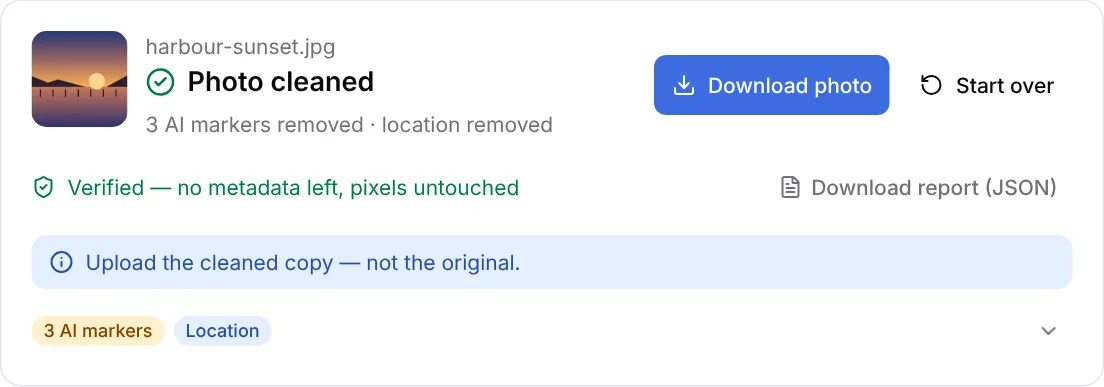
Download the photo, or all of them as a ZIP; each file name ends in -clean. When you post, pick the cleaned copy: the original still carries its metadata.
- On iPhone, tap Save or share and choose Save Image to put the copy in Photos, where Instagram and TikTok pick it from.
- Keep the original if you want its metadata for your own records. Just don’t upload it.
Check the result
You don't have to take the tool's word for it. After cleaning, AI Label Remover reads the cleaned file again with the same parsers and compares it with the original:
- AI markers, C2PA, XMP, EXIF, IPTC, GPS and AI prompts: each one is shown as found in the original and removed (or, in AI-markers-only mode, kept without its AI fields) in the cleaned copy.
- Image data: confirmed byte-for-byte identical to the original, which is what "pixels untouched" means.
If anything is still there, the tool says so and tells you not to upload that copy. You can also download the results as a JSON report for your records.
For a second opinion, upload the cleaned copy to the Content Credentials verify tool: it should no longer find any Content Credentials.
Other ways to remove AI metadata, and their trade-offs
| Method | Re-encodes the image? | Removes AI metadata? | The catch |
|---|---|---|---|
| Screenshot | Yes | Usually | Lower resolution and extra compression |
| Convert or re-save in an editor | Usually | Sometimes | Depends on the app and its settings; you can't see what was kept |
| Online converter | Usually | Sometimes | Many upload your photo to their servers |
ExifTool (exiftool -all=) | No | Most of it | Command line; by default it also removes the colour profile and orientation |
| AI Label Remover | No | Yes: C2PA, XMP, EXIF, IPTC, PNG text | Doesn't touch watermarks hidden in the pixels |
Screenshots and converters can work, but you trade image quality for a result you can't verify. If you only need to clean one file and you're comfortable on the command line, ExifTool is a solid choice; AI Label Remover does the same kind of lossless removal, keeps the colour profile and orientation, and shows you exactly what it removed.
What removing AI metadata won't do
- It won't remove invisible watermarks. Google's SynthID and similar watermarks are part of the image itself, so no metadata tool, this one included, can remove them, and neither can a screenshot or a format change.
- It can't guarantee a label disappears. Platforms also run their own checks and use what you disclose when posting.
- It doesn't change the rules. If an image really was generated with AI, platform policies and laws such as the EU AI Act may require you to disclose it. Removing metadata is meant for labels that don't belong, such as a real photo flagged because of an editing app, and for privacy. Only clean files you own or have permission to edit (see our Terms of Service).
Key takeaways
- AI metadata lives in C2PA, XMP, IPTC, EXIF and PNG text blocks inside the file.
- You can remove it in three steps: add your photos, choose what to remove, download the cleaned copy, and upload that copy instead of the original.
- Check the result: the cleaned file should show no AI markers and identical image data.
- Screenshots and converters cost quality and can't be checked; pixel watermarks like SynthID survive every method.