 AI Label Remover
Photo Metadata Remover: Strip EXIF, GPS, XMP & C2PA From Any Photo
Remove the GPS location, camera details and AI tags hidden in your photos, right here in the browser — no app to install, no signup, nothing uploaded. Only the metadata goes; the pixels are never re-encoded.
- No app to install · nothing uploaded
- Free · no signup · no watermark
- JPG · PNG · WebP · HEIC · AVIF · 100 photos at once
What a photo metadata remover strips from your photo
Most photos carry several metadata blocks. By default every one of them goes, EXIF data included; only what the image needs to display correctly stays: the colour profile and orientation.
| In the file | What’s inside | When you clean it |
|---|---|---|
| EXIF | Camera make and model, lens, shutter speed, ISO, date taken, editing software, sometimes the camera serial number and a preview thumbnail | Removed. If the photo needs rotating, a tiny orientation tag is written back so it stays the right way up. |
| GPS | Latitude, longitude, altitude and the time of the fix, stored in EXIF and sometimes in XMP | Removed in both modes, unless you tick Keep location in AI markers only. |
| XMP | Edit history, ratings, the creating app, and AI fields such as the digital source type | Removed. AI markers only blanks just the AI fields. |
| IPTC | Captions, keywords, creator and copyright | Removed. AI markers only keeps them, except AI fields. |
| C2PA | Content Credentials: a signed record of how the image was made or edited, including with AI | Removed in both modes. |
How to remove metadata from a photo
Drop the original file
Add the photo straight from your camera roll, card reader or downloads — JPG, PNG, WebP, HEIC or AVIF. Don't re-save it through another app first: some apps write fresh metadata on export.
Choose what to remove
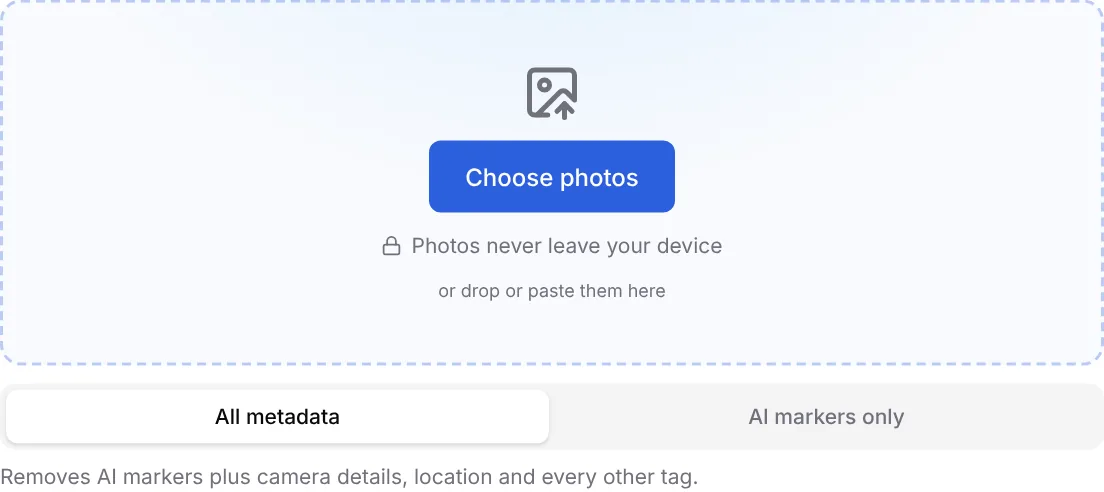
Keep the default, All metadata, or pick AI markers only to keep camera details and copyright. Every C2PA manifest, XMP field, EXIF block and PNG text chunk found in the photo is listed.
Download the verified copy
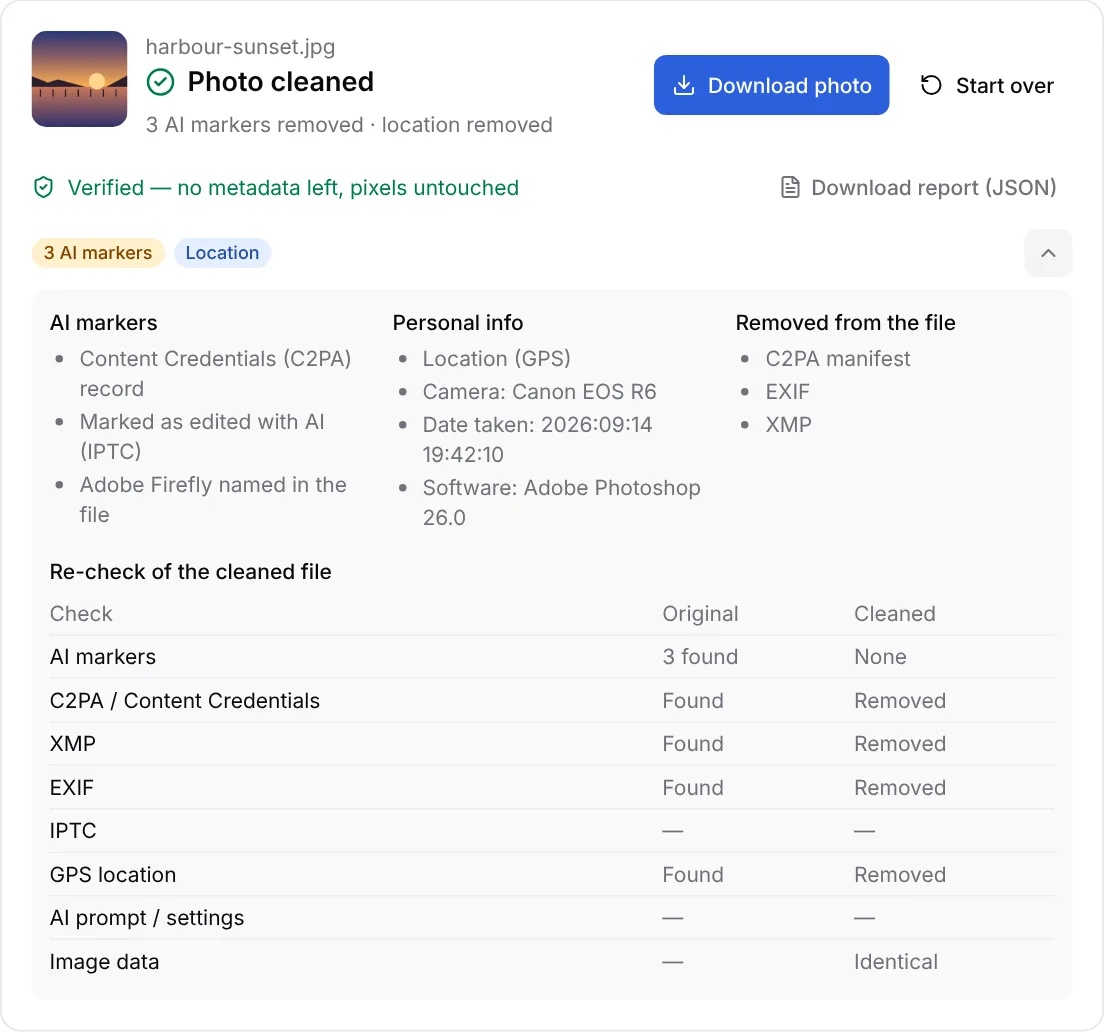
Each cleaned file is read again before you save it: no metadata left, pixels byte-for-byte identical. Save photos one by one or all at once as a ZIP; file names end in -clean.
Upload the cleaned file
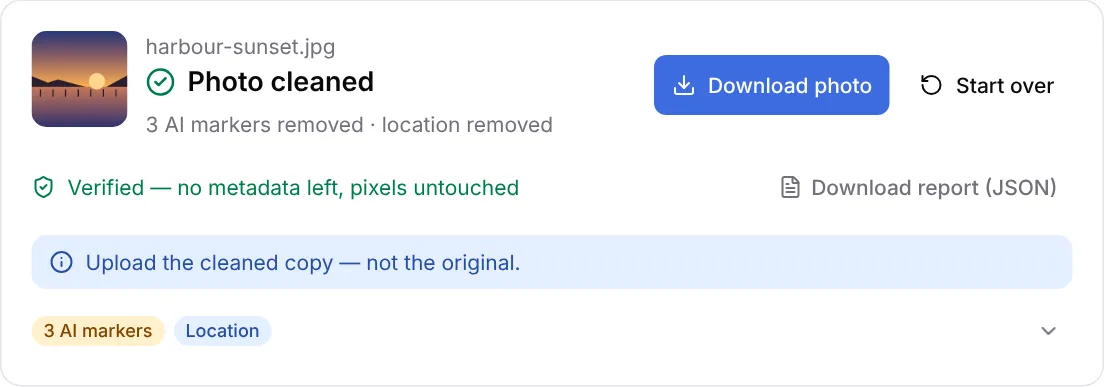
Use the cleaned copy everywhere — social posts, marketplaces, job applications, client delivery. The original still carries its metadata.
What changes and what doesn’t
The metadata blocks are cut out of the file; the compressed image data is copied across untouched. Resolution, colour, sharpness and file format stay the same, the colour profile is kept, and phone photos keep their orientation. Before you download, the cleaned copy is read again and its image data compared byte for byte with the original.
Other ways to remove metadata from a photo work too, with trade-offs:
| Method | Re-encodes the image? | Removes the metadata? | The catch |
|---|---|---|---|
| Screenshot | Yes | Usually | Lower resolution and extra compression |
| Convert or re-save in an editor | Usually | Sometimes | Depends on the app and its settings; you can't see what was kept |
| Online converter | Usually | Sometimes | Many upload your photo to their servers |
| ExifTool (exiftool -all=) | No | Most of it | Command line; by default it also removes the colour profile and orientation |
| This tool | No | Yes: EXIF, GPS, XMP, IPTC, C2PA, PNG text | Doesn't touch watermarks hidden in the pixels |
By file type and device
- iPhone (HEIC) — HEIC photos are cleaned as HEIC — no conversion to JPG. Sharing from Photos, the Options button at the top of the share sheet can turn off Location, but camera details and the other tags still go along. To keep a cleaned copy in Photos, tap Save or share and choose Save Image.
- Android — Most camera apps have a location setting (often called Save location or Location tags). Turning it off stops new photos from recording GPS; it doesn't touch photos you already took or any other tag.
- Windows — File Explorer's Properties → Details → Remove Properties and Personal Information clears many EXIF fields, but which ones depends on the file format, and it doesn't show C2PA manifests.
- Mac — Preview's Inspector (Tools → Show Inspector) has a Remove Location Info button, and Photos' File → Export lets you leave location out. Both handle location only.
- Editing apps — Exporting writes metadata again. Lightroom and Photoshop export settings decide which metadata goes in, and Photoshop adds Content Credentials when you use its generative AI features. Clean the exported file, not just the original.
Why remove metadata from photos
- Your location — A photo taken at home can carry its GPS position to anyone who downloads it. Removing GPS from a photo before you post or send it is the most common reason people clean files.
- Marketplaces and rentals — Listing photos for a second-hand sale or a room are usually taken where you live.
- Client work and applications — Delivered photos and portfolio images can carry your camera, its serial number, your editing software and the exact time you shot them.
- AI labels — C2PA and XMP records are what platforms read to label a photo as AI. If a real photo was flagged because of an editing app, cleaning it before you upload removes that signal.
When cleaning isn’t enough
- Invisible watermarks such as SynthID live in the pixels, not in the metadata, and survive cleaning.
- The picture itself — a street sign, the view from a window — can still give a place away.
- A photo that's already posted keeps whatever metadata it was uploaded with; cleaning your copy doesn't reach it.
- Platforms can run their own detection after upload, so cleaning a file is not a guarantee against labels.
Frequently asked questions
What metadata is stored in a photo?
Four main groups: EXIF (camera model, lens, shutter, ISO and often GPS coordinates), XMP (editing history and AI provenance flags), IPTC (captions, keywords, copyright) and C2PA Content Credentials (a signed record of how the image was made or edited).
Does removing metadata change the picture?
No. Only the metadata blocks are removed, and the image data is never re-encoded. Resolution, colour and sharpness stay exactly the same, and each cleaned file is compared byte for byte with the original before you download it.
Can this remove GPS location from a photo?
Yes. GPS latitude, longitude, altitude and the time of the fix are stored in EXIF, and sometimes in XMP; both are removed. In AI markers only mode, location is still removed unless you tick Keep location. This is the most common reason people clean a photo before posting or sending it.
Will my HEIC photos from iPhone work?
Yes. HEIC and HEIF files from an iPhone work as they are, with no conversion to JPG first. JPG, PNG, WebP and AVIF are supported too, up to 50 MB per file and 100 files at a time.
Can a cleaned photo still be traced back to me?
Metadata is not the only trace. The picture itself — a street sign, the view from a window — can give a place away, and invisible watermarks such as SynthID live in the pixels rather than in the metadata. Cleaning removes the file’s metadata, nothing more.
Does this also remove the AI label from social media?
Cleaning the C2PA and XMP records before you upload is what stops Instagram, Facebook and TikTok from reading AI provenance from the file. A label already attached to a published post can’t be changed by editing the file — our Instagram guide covers that case.
Is removing metadata legal?
Removing metadata from files you own is legal in most countries and is routine for privacy. It is not a way to pass AI-generated images off as real: Meta, for example, requires a label on photorealistic AI video and realistic AI audio, and laws such as the EU AI Act require disclosure of deepfakes. Only clean files you own or have permission to edit.
Do you upload my photos?
No. The cleaning runs inside your browser, so the files never leave your device. There is no server upload step, no account and no storage.